> For the complete documentation index, see [llms.txt](https://guide.ston.fi/llms.txt). Markdown versions of documentation pages are available by appending `.md` to page URLs; this page is available as [Markdown](https://guide.ston.fi/providing-liquidity/liquidity-provision-with-ledger.md).
# Liquidity provision with Ledger
Read a getting started guide to use liquidity provision with Ledger on STON.fi, step-by-step instruction.
## Liquidity Provision with Ledger
This guide explains how to add liquidity on [STON.fi](https://ston.fi/) using a **Ledger hardware wallet**.
⚠️ **Note:** Ledger signs only one transaction at a time. Adding liquidity often requires **multiple signatures**. Don’t worry — the [STON.fi app](https://app.ston.fi/) detects that you use a Ledger wallet and guides you step-by-step. Your funds are always safe, even if you stop halfway.
***
### ✅ Before You Start
Make sure: you have
* Your **Ledger device set up**
* Ledger **connected to Tonkeeper** ([see guide](https://tonkeeper.helpscoutdocs.com/article/86-how-to-connect-ledger-to-tonkeeper))
* A stable internet connection
### Step 1. Connect Ledger to [STON.fi](https://ston.fi/)
1. Open [STON.fi app](https://app.ston.fi/).
2. Click **Connect Wallet → TonKeeper → Ledger wallet**.
### Step 2. Choose a Pool
There are two ways to choose a pool:
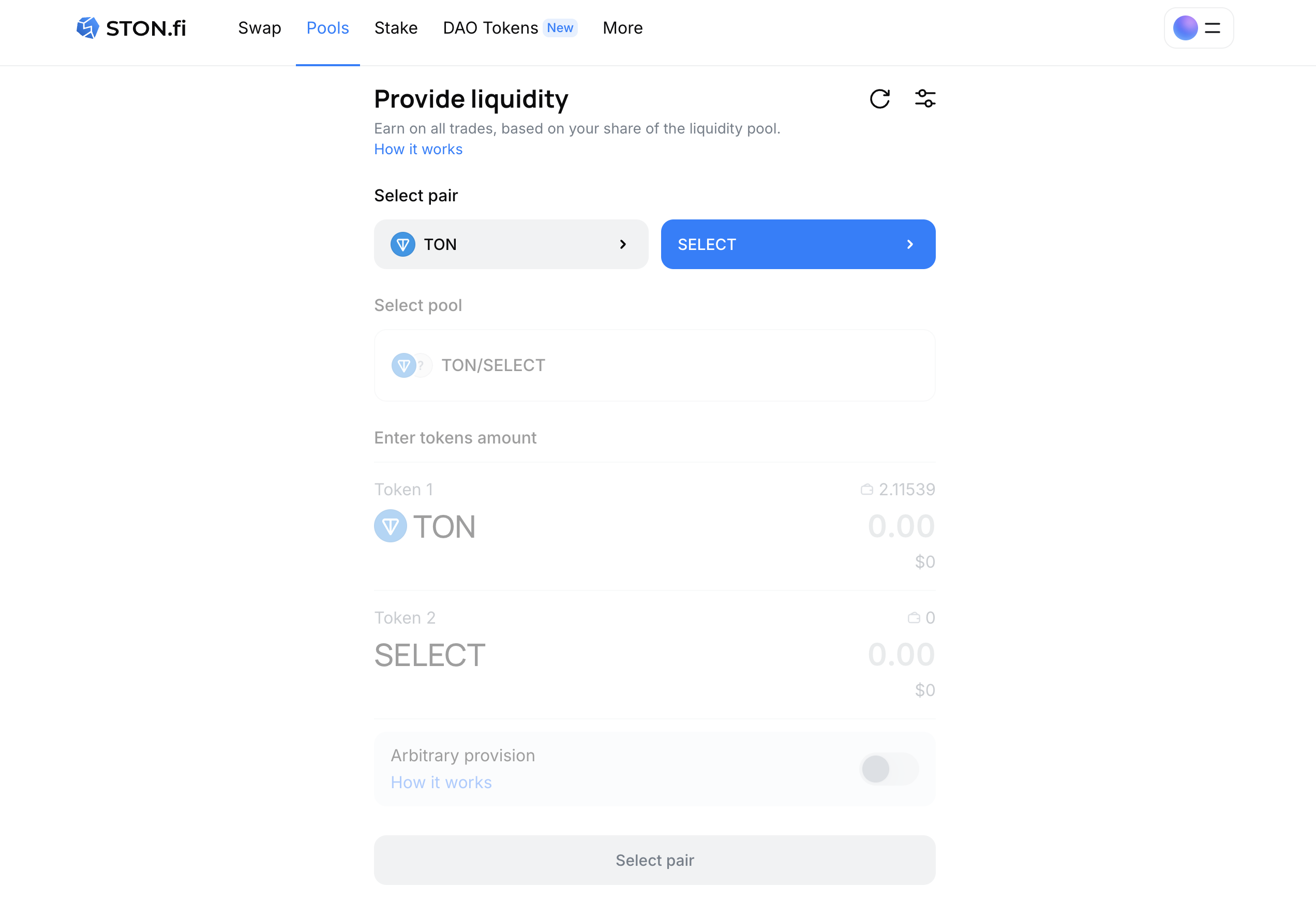
* **Direct**. Go to [Provide liquidity page](https://app.ston.fi/liquidity/provide?utm_source=chatgpt.com) → pick a token pair (e.g., GRAM**/STON**) → click **Select pair**.
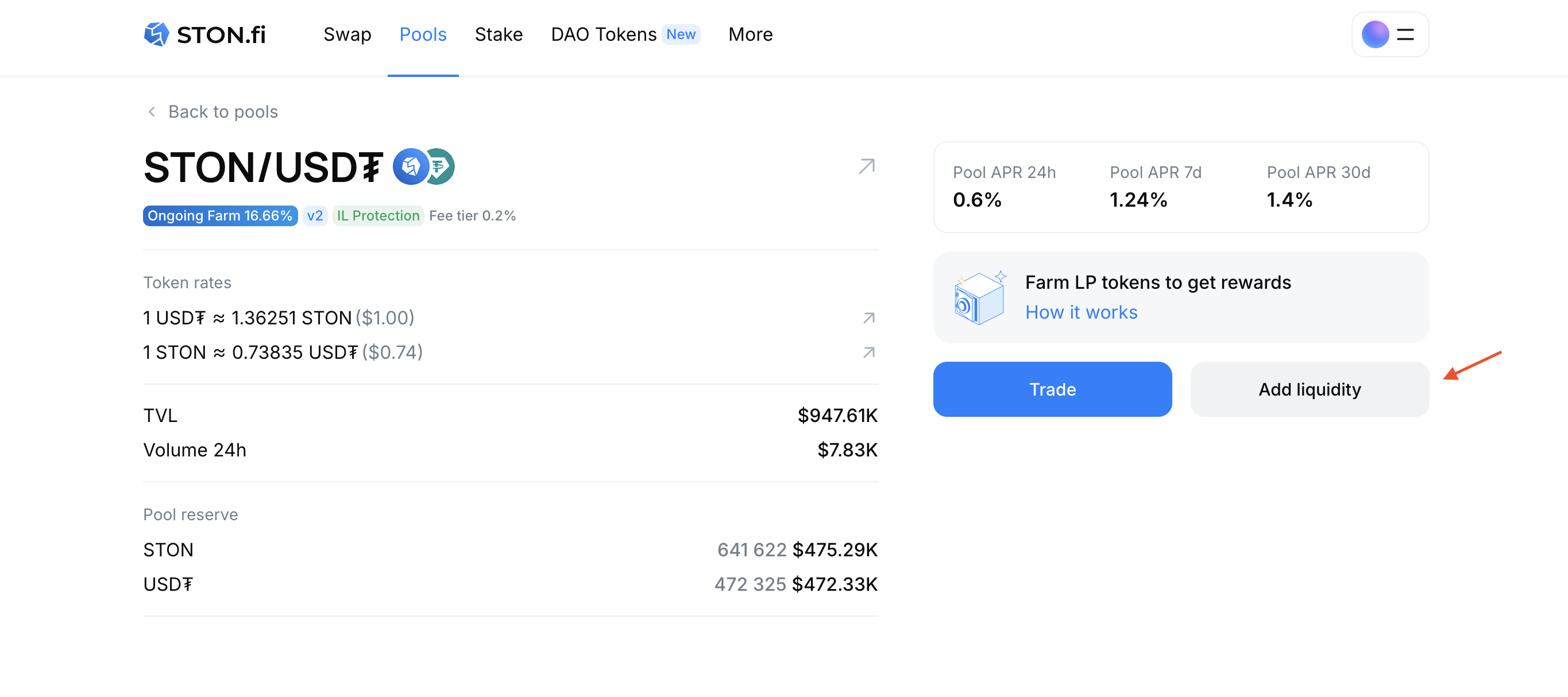
* **From Pools List.** Open [Pools](https://app.ston.fi/pools) → select a pool → click **Add Liquidity**.
### Step 3. Select Provision Mode
You can provide liquidity in two modes:
#### 🔹 Balanced Mode (default)
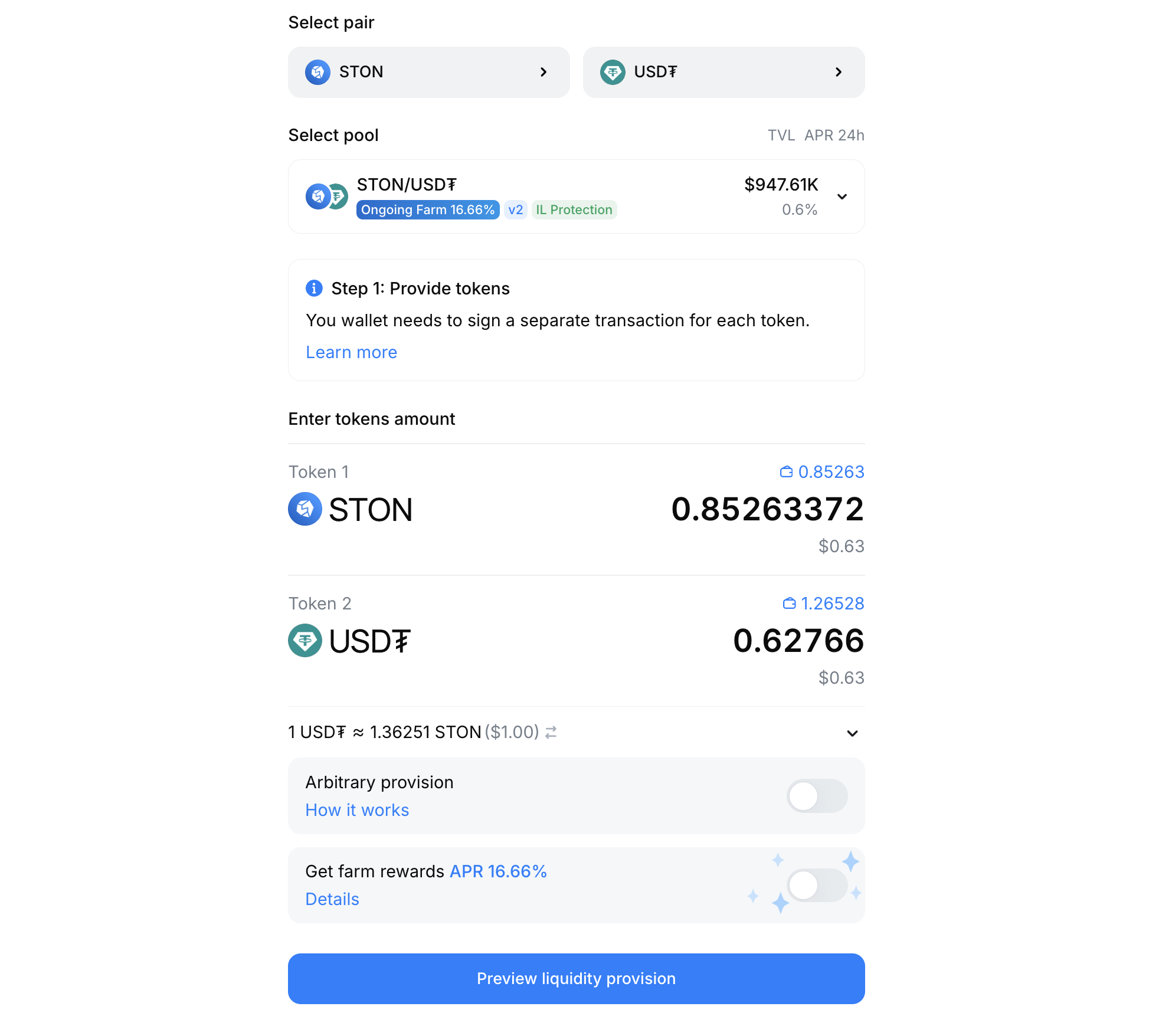
Provide equal value of both tokens.
* Enter the amount of Token A → Token B is calculated automatically.
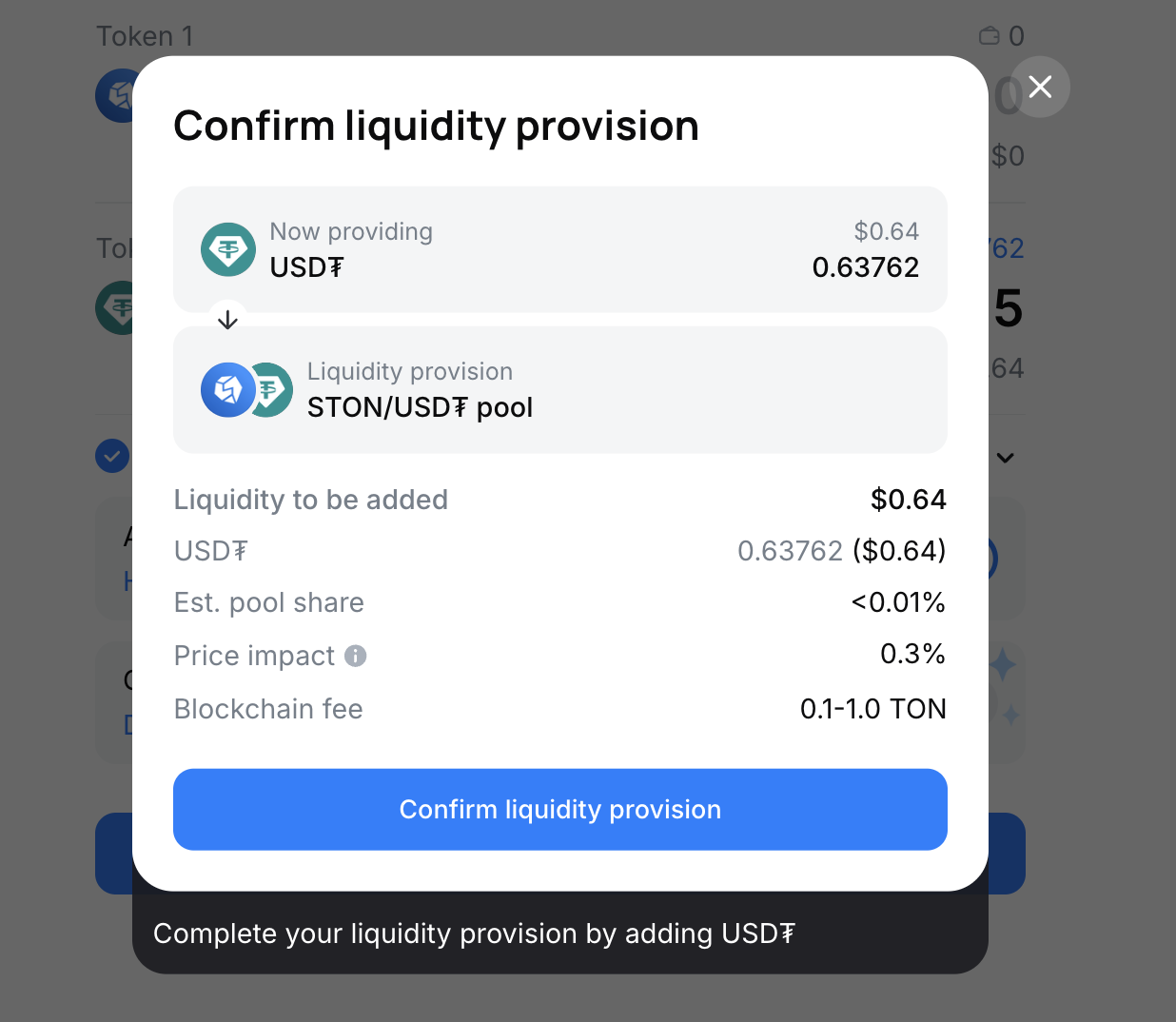
* Click Preview liquidity provision → **Confirm liquidity provision**.
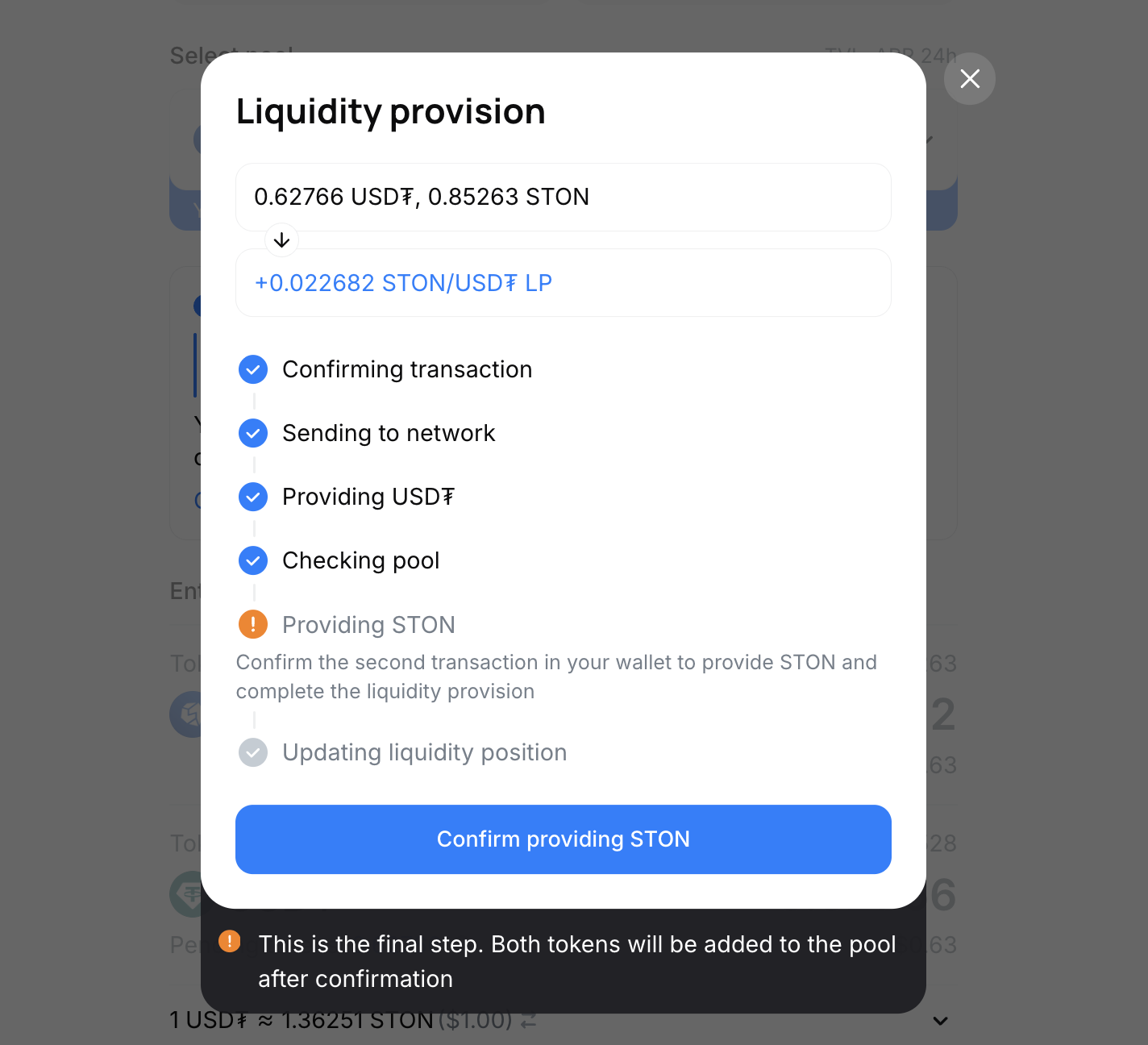
* In the confirmation window, approve the action.
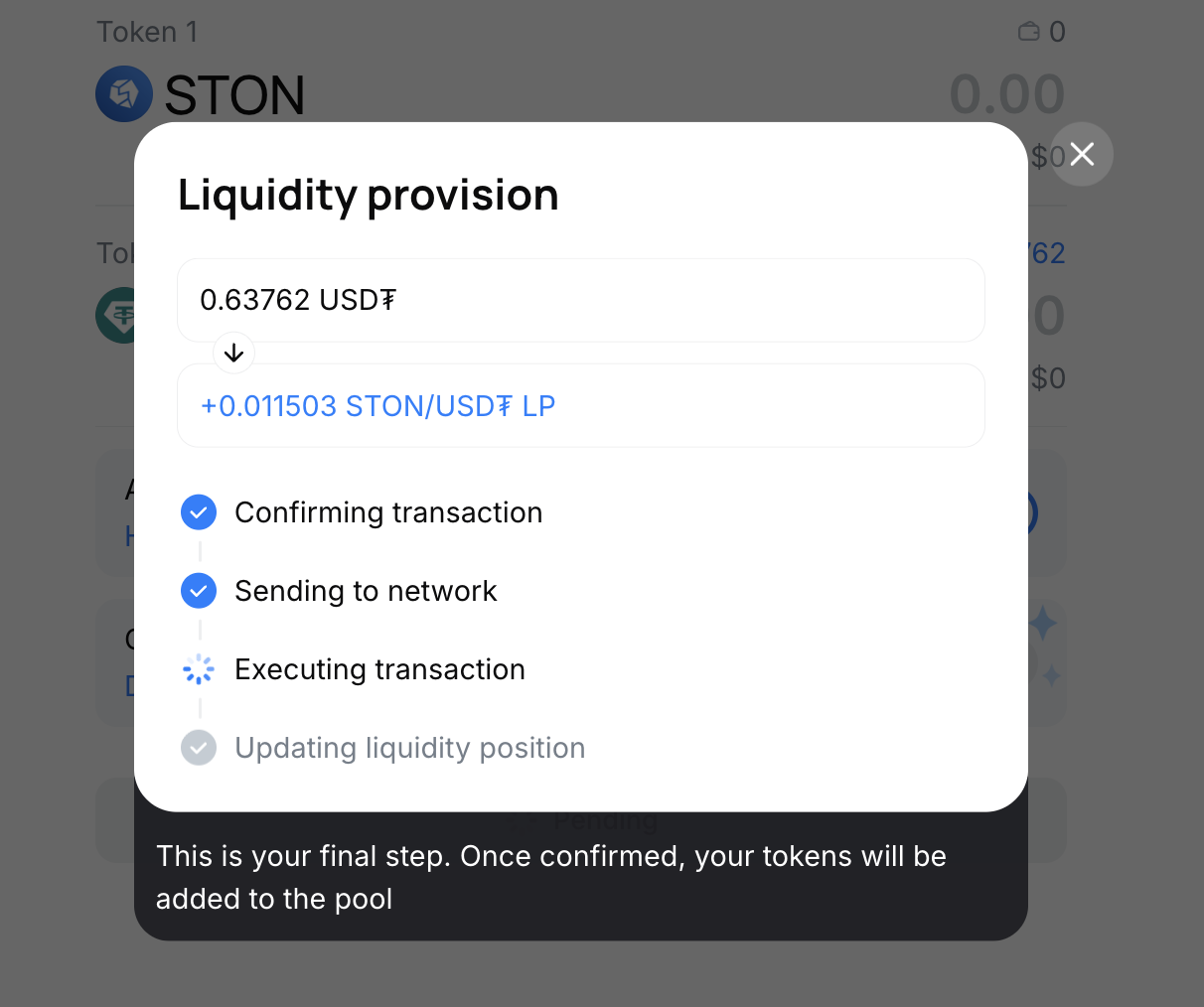
* Sign two transactions with Ledger:
* Token A deposit\
* Token B deposit\
\
⚠️ Keep the confirmation window open until both signatures are complete.\
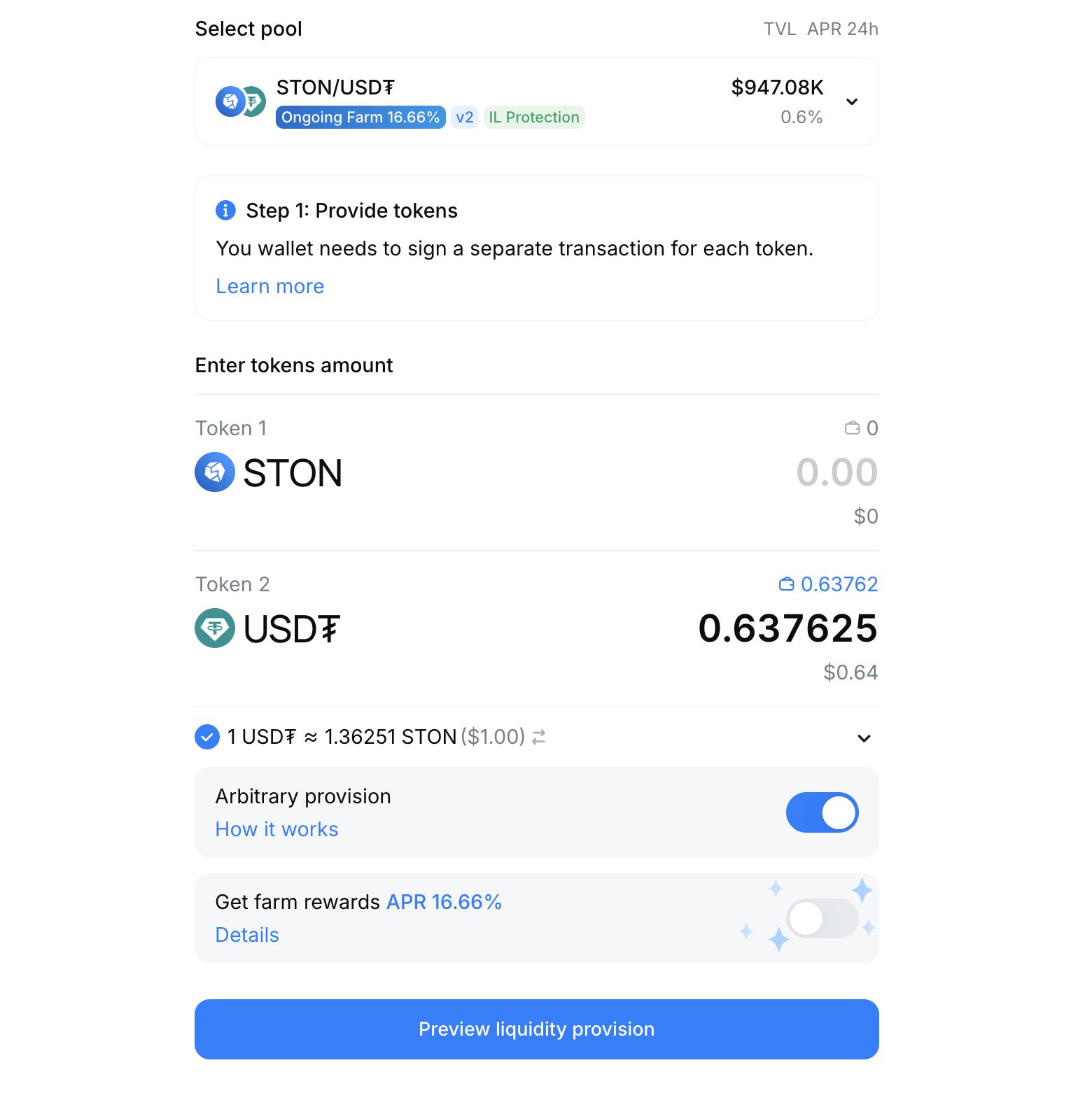
#### 2. Arbitrary Provision (optional)
Supply tokens in any ratio. The pool automatically balances your contribution to align with the required ratio.
* You can provide one or two tokens.
* Sign one transaction (if one token) or two transactions (if two tokens).
* Click Preview liquidity provision → Confirm liquidity provision.
* Sign transactions with Ledger as prompted.
✅ That’s it! You’ve successfully added liquidity on [STON.fi](https://ston.fi/) with Ledger.
❌ Limitations. Pool creation is not supported with Ledger yet. You can only add liquidity to existing pools.
### Special Cases with Ledger
Since Ledger signs one transaction at a time, you may see intermediate states:
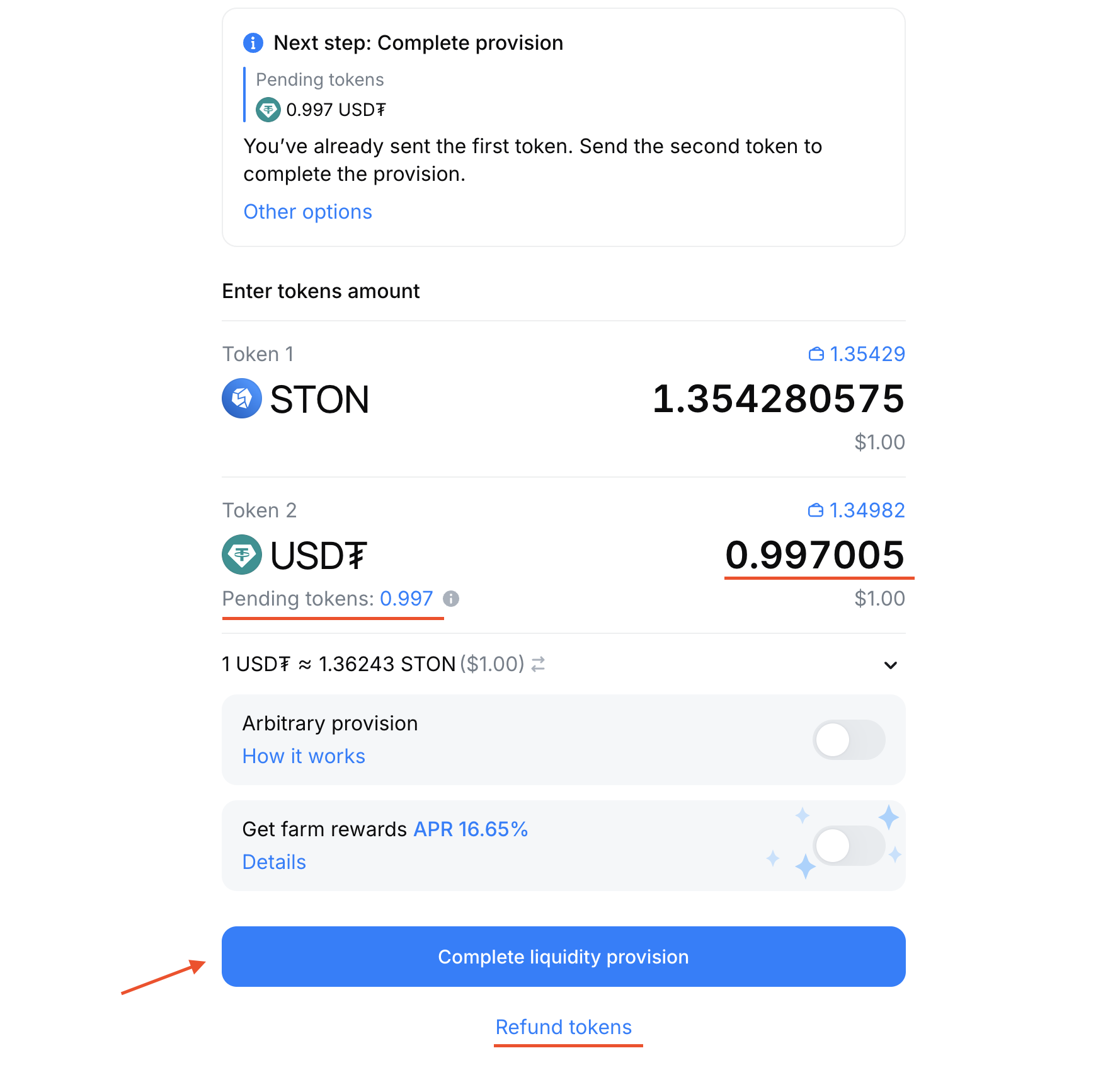
Case 1: Signed only one token
What to do:
* Sign the second transaction to finish, OR
* Use Arbitrary provision to complete the operation with a single token, OR
* Refund the first token back to your wallet.
Case 2: Both tokens sent but provision not completed
What to do:
* Complete liquidity provision with already sent tokens, OR
* Add more tokens to increase your LP position, OR
* Refund tokens back to your wallet.
👉 Every action requires a Ledger signature.
👉 Your funds remain safe at all times.
.png?alt=media&token=19d13361-b281-4f6f-a7b0-13609b9b0e0f)